

1. Tune up the locator
The locator can be tuned up in the locator center.
Sometimes it's convenient to preview the result.
If so, please select the "Preview changed settings" checkbox or click on the "Toggle locator" button.


2. Change the color
Open the locator center.
Click on the color wells next to the "Outer color" and "Inner color" labels. Select your colors.
Please note there is an opacity slider - drag it until you get the locator unobtrusive, still noticeable.

3. Change the size
Open the locator center.
Drag the sliders next to the "Outer diameter" and "Ring thickness" labels. 
4. Change the animation
Open the locator center.
Select the "Animated momentary ring" radio button. Drag the sliders next to the "Animation speed" and "Animation repeat" labels. The momentary locator may appear only when the permanent one is not visible.

5. Make it static
Open the locator center.
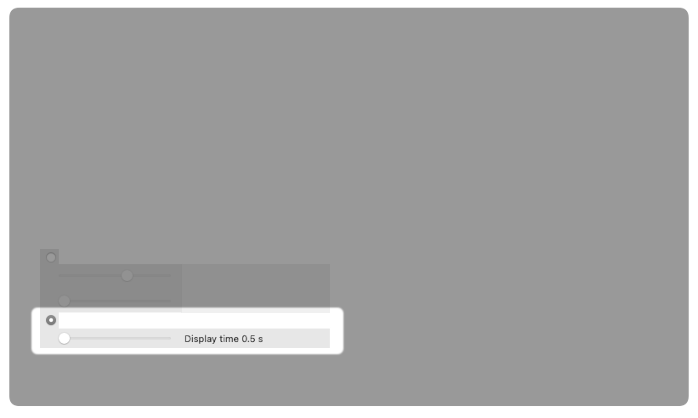
Select the "Static momentary ring" radio button. Drag the slider next to the "Display time" label. The momentary locator may appear only when the permanent one is not visible.
6. Make it permanent
Open the locator center.
Select the "Permanent ring" checkbox. The momentary locator may appear only when the permanent one is not visible.

|


| ||||


© 2012-2024 CODERACE
Apple, the Apple logo, App Store, Mac, Mac OS X and macOS are trademarks of Apple Inc.