1. Customize myPoint menu
Open myPoint panel and select General preferences view.
- Select or deselect highlighted checkboxes. They will show or hide related menu items.
- Open myPoint menu to preview the result.
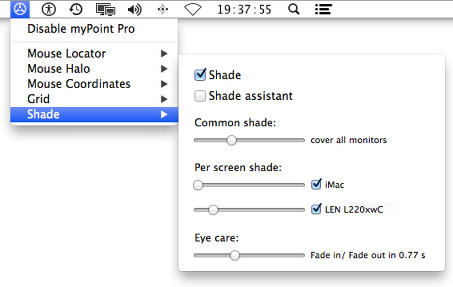
The menu tuned up at max:
Note:
- When you cannot open myPoint panel from the menu (all related menu items are hidden):
- Use the "Open myPoint panel" hotkey (default: ⌃⌥⌘ P).
- Or relaunch myPoint (while it is already running in the background) from the Applications folder.
- When the "Quit" menu row is hidden, the app can be exited from the General preferences panel:
- Open myPoint panel.
- Select General view.
- Click on the "Quit" button.
2. Customization strategy
If you plan to use myPoint, please consider the following plan.
-
Prepare this app to run automatically.
- Open the preferences panel.
- Select General view.
- Select the "Automatically start myPoint when I login" checkbox.
-
Hide the "Quit myPoint Pro" menu row.
- Clear the "Quit" checkbox.
-
Hide the "About myPoint Pro" menu row. The command is valuable until you get familiar with this app.
- Clear the "About" checkbox.
-
Keep the "Help" menu row until you read all tutorials.
- Clear the "Help" checkbox.
-
If you plan not to change a tool, then hide the related tool menu row.