Color
Geometry
Effects
Other
1. SMPTE
This is a universal test for a quick estimation and tuning.
Use it to:
- Adjust the brightness and contrast.
- Check and fix corner colors.
- Check and fix the size, shape, focus, resolution, convergence and colors.
Follow steps below:
- Adjust the brightness & contrast.
- Set a comfortable contrast.
- Tuneup the brightness.
There are 10 blocks inside the frames. Their brightness is from 1% to 10%.
Each block has a bright spot above it - it helps to locate the block on a dark screen.
- Increase the brightness until all blocks become visible.
- Then decrease the brightness until 1%-3% blocks just disappear.
- If you are writing or reading text only, try to hide the 4% block too.
- Tuneup the contrast.
There are 10 frames - each one inside another. They are formed in a "bottom-right" shape.
Their brightness is from 5% to 50% in step of 5%.
There is a bright spot above most internal frame.
- Adjust the contrast until the frames become visible and clearly distinguishable in intensity.
- If you are writing or reading text only, try to make the most internal frame almost invisible.
- Check the gray scale - it's from black to white.
- Check the gray gradient.
- There are 21 gray blocks - the step is 5% brightness.
- Check and fix basic colors.
Tune up the RGB controls until all the RGB and CMY are OK.
- Check intermediate colors.
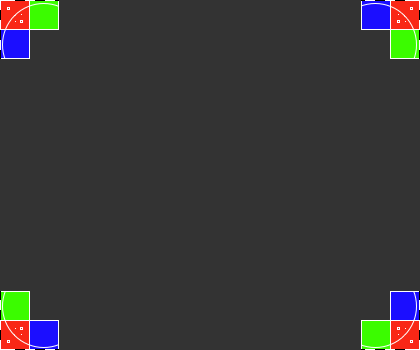
- Check and fix corner colors.
- Check RGB gradients.
- Check and fix the shape and linearity of the whole image.
Observe the grille and the central circle.
There is a dashed line at image's periphery.
- Check and fix the shape and linearity in image corners.
Observe the grille and circles in image corners.
- Check and fix the convergence.
- Quick check:
Preview the markers in central part of the image and in its corners.
- Detailed check:
Preview the grille about any convergence evidence.
Change the color of the grille (WCMY) and check again.
- Check and fix the resolution.
Observe the line and chessboard templates until you tuneup the resolution.
- Check and fix the focus.
Observe dots and small rectangles in central part of the image and in its corners.
- Check the readability.
- Finally adjust the brightness & contrast once again.
RGB color space.
More info
2. Eye moiré
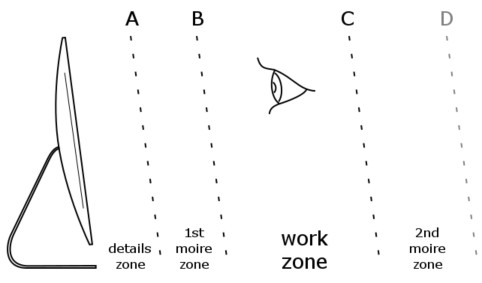
- Find out the First moiré zone.
Run 1x1 moiré patterns.
Move your eyes close enough to the screen (a span or less) until pixels become visible.
Start moving your eyes away from the screen slowly.
At some point "A" the moiré effect will occur - this is the beginning of the 1st moiré zone.
Continue to move away from the screen until the effect disappears - this is the end of the 1st moiré zone - point "B".
- Find out the Second moiré zone.
Run 2x2 moiré patterns.
Move your eyes at the end of the 1st moiré zone.
Start moving your eyes away from the screen slowly.
At some point "C" the moiré effect will occur again - this is the beginning of the 2nd moiré zone.
The end of the 2nd moiré zone (point "D") is not interesting.
- Mark or remember these three points/distances from the screen.
- Work zones.
- Main work zone - between point "B" and point "C".
This is the normal working zone.
Try to keep your eyes in this zone only.
- Details zone - between the screen and point "A".
Position your eyes in this zone only when hunting pixels or micro scratches.
- You should never position your eyes in moiré zones.
More info
The moiré patterns will always concern our eyes, even on a perfect display.
It's not just annoying - it's disturbing the eye focus too.
Because of this, you should position your eyes in so called Work zone and avoid the Мoire zones.
Sometimes you can move your eyes into the Details zone.
Do not stay there for a long time - just be quick.
There are two reasons:
- Higher brightness.
This zone is 2-4 times closer to the screen than the Work zone.
As a result the brightness is 4-16 times higher.
- Mosaic view.
Pixels are visible and the image appears as a mosaic.
The mosaic is a "difficult" image and you should look at it for a short time only.
Color space not supported.
3. Brightness & Contrast
Tuneup your monitor following steps below:
- Set a comfortable contrast.
- Tuneup the brightness.
There are 10 blocks inside the frames. Their brightness is from 1% to 10%.
Each block has a bright spot at its center - it helps to locate the block on a dark screen.
- Increase the brightness until all blocks become visible.
- Then decrease the brightness until 1%-3% blocks just disappear.
- If you are writing or reading text only, try to hide the 4% block too.
- Tuneup the contrast.
There are 10 frames - each one inside another.
Their brightness is from 5% to 50% in step of 5%.
- Adjust the contrast until the frames become visible and clearly distinguishable in intensity.
- If you are writing or reading text only, try to make the most internal frame almost invisible.
More info
The light on the monitor
The video signal is generated and sent from the video controller inside the computer.
The signal is carrying information about a pixel address and its light output.
Finally the monitor converts the video signal into a light on its screen.
Brightness and contrast control
Usually there are two controls on each monitor for tuning up the light output.
- The Brightness control.
It adjusts the low-level of the light output to tuneup the black color on the screen.
Use it to adjust the black color according ambient light.
- The Contrast control.
It's used to set the amplification of the light output -
this is the ratio between the low and high level of the output.
I.e., how brighter is the white color compared to the black color on the screen.
Use it to set a comfortable output from the monitor.
This "comfortable" level depends both on the ambient light and the colors shown on the screen.
Tips
- Sometimes it's better to set the brightness a bit low and to lose some of the darkest shades.
This way you'll get a better contrast and more natural black.
- The light output can be affected by current resolution of the screen.
If so you should tuneup the brightness and contrast settings.
- If there is a lot of white color on your screen, just decrease a bit the contrast.
This will protect your eyes.
Gray color space.
4. Moiré
- Look for waves, wisps, ripples, bundles, shimmers, etc. of intensity variations.
- Use all patterns and colors.
- The moiré varies with template, color and intensity.
Solutions:
- Adjust focus.
Defocus the image slightly.
- Increase the contrast.
Add some contrast.
This will increase the beam current level and the focus spot size.
The result is a defocused picture.
- Change the output image size.
Make the picture bigger or smaller.
This will change the ratio between the resolution and the shadow mask thus avoiding the interference.
- Reduce the resolution.
This one always works.
- Avoid gray and dark gray backgrounds.
Use white or almost white background.
This will increase the projecting beam level and defocus the picture.
- External filters.
Some external "low radiation" filters generate or increase the moiré.
Check to output picture with and without the filter.
- Moiré controls.
Use H-Moiré control to fix vertical lines and V-Moiré control to fix horizontal lines.
- Use defocusing techniques under control of the focus & readability tests.
More info
The moiré is an interference phenomenon.
It appears on all color CRT monitors.
The effect is due to the interference between the shadow mask (dot pitch) and the beam scanned resolution (output resolution).
It mostly occurs when the focus is at high level.
The moiré looks like waves, wisps, ripples, etc. of intensity variations.
RGB color space.
5. Resolution
Check the resolution performance:
- Check the signal with the Grid template.
- Check the horizontal resolution with the V-lines template.
- Check the vertical resolution with the H-lines template.
- Use other Dots templates (chessboard, aperture, grille) and check the image.
- In a common case the 1st and 2nd tests (Grid & V-lines) are important,
others "just confirm" the image is sharp & focused and without effects.
More info
The Resolution is a number of picture elements in a given direction.
In computer displays it's the number of pixels in one row and one column.
For example, 800x600.
The horizontal resolution test (the V-lines template).
It is an extreme test for CRT monitors.
It's due to the repetitive change of the projecting beam level - from min to max and back.
This forces both the video card and the monitor.
Test results:
- The white lines are visible.
The resolution is OK.
- The image is an interference pattern.
Probably the dot pitch is too coarse for this resolution.
For example, the monitor is running in a non-native resolution.
- The image is just a gray color.
Either the video card or the monitor's video amplifier is too slow for chosen combination of resolution and refresh rate.
The solution is either to upgrade the electronics or to lower the resolution and refresh rate.
Bandwidth, rise/fall time problem (grid template).
The vertical lines are gray instead of white.
- Check the monitor's interface cable.
Solution: replace the cable.
- Check the video card.
Such an output image is a common problem for cheap video cards.
The monitor cannot fix the signal in this case.
Correct solution: use better video card.
Cheap solution: use a lower resolution.
- Finally the problem is a poor video amplifier inside the monitor,
or the combination of resolution and refresh rate is outside its performance.
Correct solution: upgrade/repair the monitor.
Cheap solution: use a lower resolution.
|
|
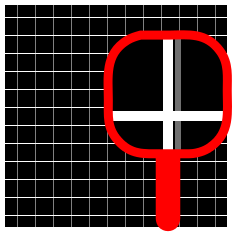
Overshooting problem (grid template).
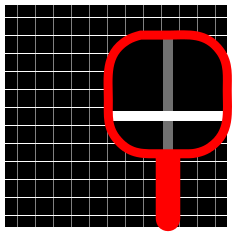
If there are shadows behind the white lines on black background (or vice versa),
then it's may be an overshooting problem.
In most cases the source is the video card - the output is increased so much and it starts to oscillate.
- Check the monitor's interface cable.
Solution: replace the cable.
- Check the video card.
Such an output image is a common problem for cheap video cards.
The monitor cannot fix the signal in this case.
Correct solution: use better video card.
Cheap solution: use a lower resolution.
- Finally the problem is a poor video amplifier inside the monitor,
or the combination of resolution and refresh rate is outside its performance.
Correct solution: upgrade/repair the monitor.
Cheap solution: use a lower resolution.
|
|
RGB color space.
6. Focus
In a case of a Focus error:
- Adjust the focus.
The pattern should be as sharp as possible.
- Decrease the contrast.
This will reduce the thickness of the beam.
- Adjust the picture size.
Shrink the output image size if the focus in corners is still bad.
- Use complementary colors.
Draw output images with complementary colors and decrease the contrast level.
More info
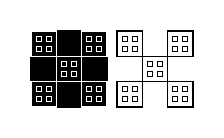
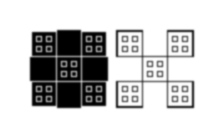
The focus error is due to spreading the projecting beam with a noticeable value.
This effect is most noticeable in the corners.
The focus is one of the effects that impact the image sharpness, especially:
- Resolution.
- Convergence.
- Blooming.
When the brightness is increased, the beam current level is increased too.
As a result the focus spot of the projecting beam is enlarged.
When the focus spot becomes bigger than the pixel, the monitor appears unfocused.
- The bandwidth of the video amplifier.
| Focused |
Unfocused |
 |
 |
RGB color space.
7. Convergence
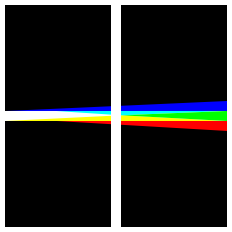
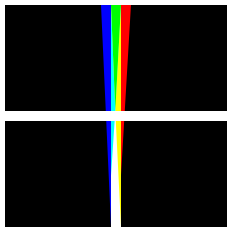
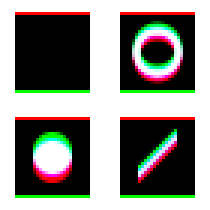
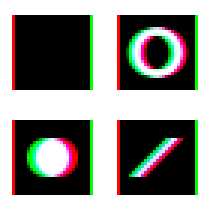
In a case of a convergence error, a white line appears with separated red, green and blue fibers.
The effect may vary in different screen areas.
- Degauss the monitor.
- Try to put the red, green and blue lines into a single white line.
The plan is:
- Make the center perfect.
- Improve the corners as possible.
- Some aberrations are tolerable.
More info
1. The classic misconvergence.
It is due the imperfection of the cathode ray positioning (or another projection technology).
It's available in all CRT displays and in some projectors.
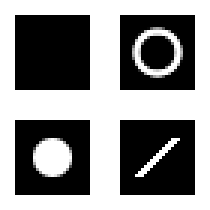
The white line on the screen is built of red, green and blue lines.
In a perfect screen (without any convergence errors) the RGB lines are overlaying each other exactly.
The result is a perfect white line.
In a monitor with a convergence error can be seen one or more red, green and blue lines, instead of one white.
It's like the focus error plus some colored fibers around the edges of an image detail.
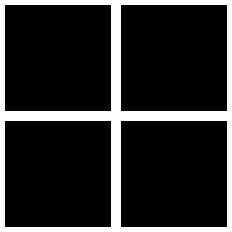
| Perfect convergence |
Vertical misconvergence |
Horizontal misconvergence |
 |
 |
 |
The convergence is not constant.
It will vary in different screen areas.
It will vary for each of primary colors too.
As a general rule the convergence should be best in the central area, and worst in the far corner areas of the screen.
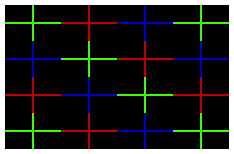
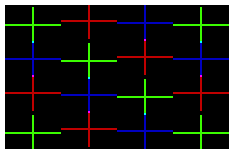
2. The subpixel misconvergence.
This one depends on the physical arrangement of subpixels inside a pixel.
It's available on all displays.
This effect is available in color printed materials too.
There is no fix for this effect.
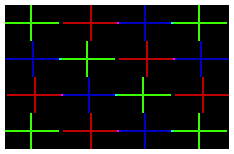
The effect is best observed in the convergence test template:
| Theoretical convergence |
Vertical misconvergence |
Horizontal misconvergence |
 |
 |
 |
RGB color space.
8. Readability
Test the readability performance:
- Check the text to be readable in all areas: center and corners.
- There should not be colored ornaments of character glyphs.
This is also a test for sharpness, focus and convergence.
Color space not supported.
9. Display Luminance
VESA and ANSI measure templates.
RGB color space.
10. Complementary colors - uniformity to gray
- Open at least two tests per monitor - use video wall settings.
This way, complementary colors templates can be compared each other.
- Change the "test step" to find the right pattern.
For example, set the Black & White pattern in the first test,
then set the Red & Cyan pattern in the second test.
- Move away from the display.
The goal is to get the chessboard pattern to look like a homogeneous gray block.
- Preview how close both templates are.
- Compare other templates.
- Tune up the deviation on both tests and compare templates again.
More info
The chessboard patterns of complementary colors pairs should look equally gray.
But on a real display each template results in its own gray.
This test will give you the offset between templates.
RGB color space.
11. Complementary colors - difference from gray
- Open at least two tests per monitor - use video wall settings.
This way, complementary colors templates can be compared against the gray.
- Set the "test step" to the Gray pattern in the first test.
- Set the "test step" to one of complementary colors templates in the second test.
For example, set the Red & Cyan pattern.
- Move away from the display.
The goal is to get the chessboard pattern to look like a homogeneous gray block.
- Tune up the "Fix" in the Gray template until both templates look closest.
- Remember the Fix value.
- Compare the Gray with other templates and remember the Fix values again.
- The Fix values in all comparisons should be (almost) the same.
More info
The chessboard patterns of complementary colors pairs should look equally gray.
But on a real display each template results in its own gray.
This test will give you the offset between templates and the monitor's gray.
RGB color space.
12. Color recognition level
- Tune the opacity.
The goal is to "get the green" color.
Your color recognition level is the opacity percentage.
- Compare the result with your étalon values.
- Common mistake is to register the change of the base color shade
instead of the appearance of the green.
More info
Our perception about an image depends on many factors.
Some of them have a constant value.
Others can vary a lot in a period of one working day.
As a result one image can appear with saturated or washed colors.
This test helps us to estimate the influence of the varying factors to our color perception.
- Ambient light.
The light reflects from the image surface and
according the surface's glossy and diffuse factors forms the output image.
While the glossy and diffuse factors are constant,
the ambient light can be changed dramatically: from a sunny daylight to a dark room.
- Monitor's brightness and contrast.
As there is no perfect display the output image will be perceived differently.
- Eye fatigue.
It varies during the working day (and other health factors) and
affects the perception of colors.
Usage:
- Basics.
- The level is measured on two backgrounds: white and black.
- Base colors: the spot colors inside the circle.
- Measure the étalon values.
- Divide your working day on periods according the light.
- Decide about target monitors.
For example, monitors on which you process images/colors.
- Check the monitors' positions during one working period.
- Measure the "color recognition level" for each period, target monitor and position.
- The best scenario is to process the étalon measurement in both condition:
- When your eyes are relaxed.
- When your eyes are tired.
This way you will know your personal threshold (the color level equivalent) of eye fatigue.
- Determine your current color recognition level.
Be aware of it anytime you run after colors.
If the level differs too much from the étalon
then it's better to relax your eyes or to get a better light.
Please do not use this test template as a color vision test (aka Ishihara test).
The colors are not selected for such a purpose.
Apply this test only to be aware about your momentary "color recognition level".
Color space not supported.