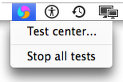
1. Customize testPoint menu
Open testPoint panel and select General preferences view.
- Select or deselect highlighted checkboxes. They will show or hide related menu items.
- Open testPoint menu to preview the result.
The menu tuned up at max:
Note:
- When "Preferences" rows are hidden testPoint panel can be opened in two ways:
- Use the "Open testPoint panel" hotkey - default is ⌃⌥⌘ P
- Relaunch testPoint (while it is already running in the background) from the Applications folder.
- When the "Quit" row is hidden, testPoint can be exited from the General preferences panel:
- Open testPoint panel.
- Select General view.
- Click on the "Quit testPoint" button.