Beginner
Intermediate
Expert
General
Test
1. Drive the test via keyboard
The test process can be driven only via keyboard, just use the commands in the list below:
-
⌘~
Switch between testPoint windows: test window, dashboard and testPoint panels.
When last two are active their captions are darker.
-
i
The i-key will show the info layer.
However, if the info layer is disabled (the duration slider is set to "Do not show test information"), nothing will be shown.
-
P
The p-key will open the dashboard panel.
Sometimes it's convenient to preview the available tuneups in the dashboard: press P, preview, press Esc.
-
↓ ↑
Up and Down arrows will change the default property (aka will tuneup it).
Pressing ⇧, ⌃ or ⌘ until tuneup will change the alternative properties (if any).
-
→ ←
Go to next / previous step.
Pressing ⌘ while stepping will step in cycle.
-
Tab Space
Next step.
Pressing ⇧ while stepping will move backward.
-
W A S D
Same as ↑ ← ↓ →.
-
⌥
Step, tuneup or close all similar tests.
-
⎋ ⌦ ⌫
Each of these keys will close the test.
Esc key can close the dashboard and tespPoint panels too.
Working via keyboard is not convenient when multiple test windows are shown simultaneously.
In such a case, please use the dashboard and mouse.
2. Custom test
Note:
Custom test can be launched only if it's included in a custom group.
This is an UI limitation of the current release.
Open the Test center and select the Custom gallery view:
- Add a new custom group.
Click on the "+" button below the group table (the left one).
Doubleclick on the group's name (not on the empty space around it) and set the right name.
- Add a test.
Click on the "+" button below the test table (the right one).
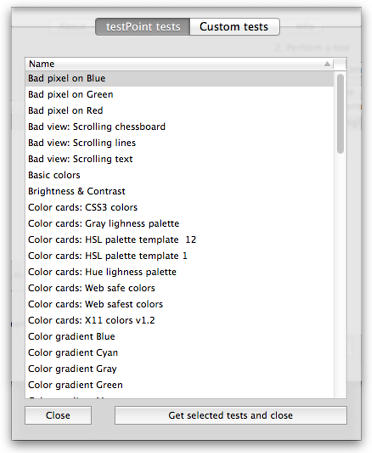
The nomenclature of available tests appears. There are two views: "testPoint tests" and "Custom tests".
Select one or more testPoint tests and click on the "Get selected tests and close" button.
Or click on the "Close" button or press the Esc key to close the panel without getting any test.
Now open the nomenclature panel again and select the Custom tests view.
- Click on the "+" button to create a new custom test.
- Doubleclick on the test's name (not on the empty space around it) and set the right name.
- Click on the "Add test image" button and select an image file.
- You will see only the image resolution inside the image table.
- Arrange the image on the test surface.
- You can add more pictures in image table.
In this case, you need to specify how the pictures will be preferred:
- Size factor.
This option is appropriate for a tiled image
- Ratio factor.
This option is appropriate for a stretched image
- Finally click on the "Get selected tests and close" button.
Now you have a custom group populated with testPoint and custom tests.
3. Suspending tests in a custom group
There is a checkbox next to the name of each test included in selected group.
If this checkbox is not selected then the test will not be shown while the group is launched.
This way you can suspend a test without removing it from the group.