testPoint

Beginner Intermediate Expert

General Test

1. Open the test center

Open testPoint Menu and click on the "Test center" item:
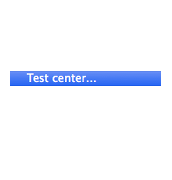
The test center is the starting point about:

  • Preview existing tests and groups.
  • Create custom tests.
  • Organize tests in custom groups.
  • Set the workflow: select target screens, video wall settings and the way test will be driven.
  • Run chosen test or group of tests.
    All running tests can be terminated via "Stop all tests" button.
  1. Everything below the "1. Select a screen" label is called Workflow area.
  2. Everything below the "2. Perform a test" label is called Test gallery.
    All tests are organized in few tabbed views: Color, Effects, Custom...

2. Show screen indices

Open the test center:

  1. Select the "Show screen indices" checkbox.
  2. Deselect the "Show screen indices" checkbox to hide indices preliminary.
    By default, indices will hide automatically after a while. However, their timeout can be changed to a longer value or even shown for infinity.

3. Run a test

Open the test center:
  • Select the target screen - select the checkbox at the left side of the screen name.
  • Deselect the "Step in cycle" checkbox.
  • Click on "Bad pixel - blue" button.
  • Close the test: click (with left mouse button) inside the test window.
    In fact clicking inside a test will advance to the next test step. In current scenario the test has only one step and the "Step in cycle" is off. As a result the test will end.

4. Tune up the current test via Dashboard

  • Open the "Gradient magenta" test.
  • R-click (click with right mouse button) inside the test window.
    The dashboard appears.
  1. Click on "i" button.
    The info layer appears. It contains information about the state of current test: name, step, available tuneups and their values.
  2. Play with the "Show test information..." slider.
    A bigger value is more appropriate for beginners - for example, 2 seconds.
    Sometimes you'll prefer to hide the info layer permanently - just drag the slider to its leftmost position.
  3. Select the "Step in cycle" checkbox.
  4. Play with the "Step" segmented control.
    Try to get the idea of cycling: press the right arrow button to navigate to step 2. Press it again: the test will not exit, but cycle from the 1st step.
  5. Play with available tuneup controls.
    Observe the changes in the test. The info layer will appear for the specified time.
  • Close the dashboard.
    Click on the red button at the top-left corner of the panel. Or press the Esc key.
  • Close the test.
    Open the dashboard again and click on the "Cancel test" button. Or press the Esc key while the test window is active.

5. Test group

  • Open the test center.
  1. Image buttons at the right side of the gallery are called Test buttons.
    They run one of preinstalled tests. The image reflects the content of the test.
  2. Regular buttons at the left side of the gallery are called Group buttons.
    They run early prepared groups of tests. These tests can be found at the right side of the group buttons.
  3. Press the "Gamut" group button.
    This will launch the gamut test group - it contains 3 tests each with 3 steps. These tests are not tunable.
  4. Open the dashboard.
  1. There is a new "Group" group box at the top of the panel.
    It contains the name of the group, the number of the current test, total number of tests.
  2. Select the "Step in cycle" checkbox.
  3. Play with the "Step" segmented control:
    • Press the right arrow button three times - this will navigate to the 1st step of the next test.
    • Press the right arrow button few more times - until it cycle to the 1st test.
  4. Play with the "Test" segmented control.
  5. Close the test.
Apple, the Apple logo, App Store, Mac, Mac OS X and macOS are trademarks of Apple Inc.