

1. Shade color
The shade has black color by default.
But there are some scenarios about different shade colors.
Find more info in the Shade FAQs article.
The color can be changed from the preferences panel.

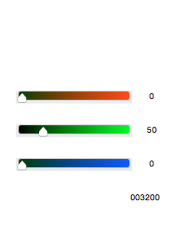
2. Shade color samples

3. Shade on multiple monitors
In a multi-monitor environment, the Common shade will not be enough. It should be combined with the Per screen shade.
By default, per screen shade sliders are available in the Shade center.
If you prefer these handles to be available in the menu too, please change the settings:

Now the menu shows sliders for both the Common and Per screen shade.

|


| ||||


© 2012-2024 CODERACE
Apple, the Apple logo, App Store, Mac, Mac OS X and macOS are trademarks of Apple Inc.