

1. Flying panel vs. Menu bar
Show in Flying panel.
This is the best for the user experience.
The panel can follow the mouse for minimizing the eye strain while moving the focus between the mouse position and the coords data.
The panel can be enlarged so the coords data to be visible without explicitly focusing on it.
On a heavily loaded system, the panel may behave sluggishly and move jerky.
In such a case, please show the cords data in the menu bar only.
Show in Menu bar.
Smaller system footprint.
No windows, colors, fonts, etc. consumed by the app.
Almost all the work is done by the system.
The flaw is an effect of jumping icons and menus in menu bar extras.
So working with coords in the menu bar is convenient only for short periods of time.
Selecting the "0-pad" option will improve the user experience via padding coords with zeros and changing the font.
In this case, the system footprint will not be so lean.
2. Coordinates origin
There are 5 coordinates' origins so that
the user can simulate different ordinate axes and specialized cases.

3. Stay aside
Sometimes it's more convenient to keep the flying panel stationary somewhere. So:

4. Show Coordinates ruler
The ruler measures things on the screen while dragging with the mouse.
It consists of two parts:
The ruler is disabled by default. So:
Coordinates ruler will engage while dragging with the mouse.
5. Measure objects with Coordinates ruler
6. Tune up Coordinates ruler
The Ruler size and Mouse coordinates.
When the ruler is engaged, only its size will be shown in the menu bar extras. Both coordinates and size can be shown in the flying panel. So play with the "Hide coordinates" checkbox to figure out what's best for you. 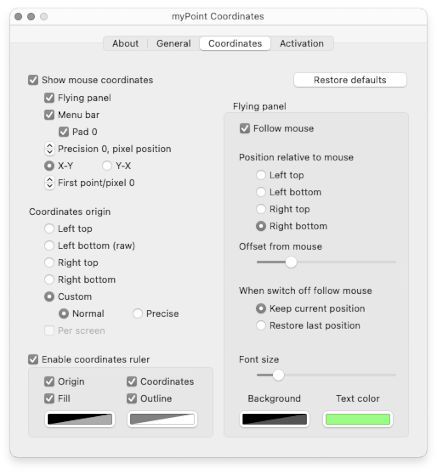
|


| ||||


© 2012-2024 CODERACE
Apple, the Apple logo, App Store, Mac, Mac OS X and macOS are trademarks of Apple Inc.