

1. Crosshair activation via keyboard
Use the shortcut ⌃⌥⌘ H (Control, Option, Command, and H) to toggle the crosshair.
2. Crosshair performance & computing resources
By default, the crosshair is working in so called Optimized performance mode.
In this mode, it consumes minimal memory and moves almost instantly after the mouse.
However, you will notice that both gauges are moving regardless of each other.
Even more, the central spot (when it's drawn) is not as translucent as other parts of the gauges.
You can turn off the Optimized performance mode.
In this case, both gauges will move together, and the central spot will look OK.
But the memory consumption is very high, and the mouse will be followed with a noticeable delay.
Hint: use the "Optimize performance" mode on memory hungry system.
Select the performance mode.
Open myPoint panel, select the Grid view, and click on the "Optimize performance" checkbox.

3. Tune up the crosshair
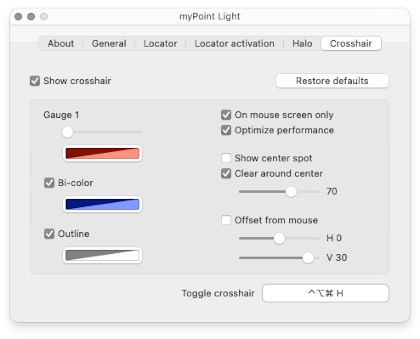
Open myPoint panel and select the Crosshair view:

There is a group box with all the crosshair preferences.
4. Restore default settings
Open Crosshair center and click on the Restore defaults button.
|


| ||||


© 2012-2024 CODERACE
Apple, the Apple logo, App Store, Mac, Mac OS X and macOS are trademarks of Apple Inc.