

1. Enable the halo module
Open myPoint menu and ensure the "Use mouse halo module" checkbox is selected.

2. Open the halo center
Open myPoint menu and click on the "Halo center" item:

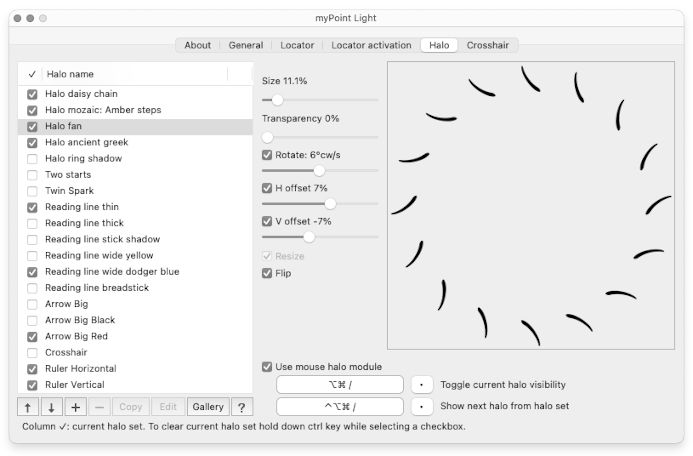
The halo center is not just a preferences panel - here, you can preview, tune, organize, import, and create halos.
3. Show a halo
Open the halo center:

So selected halo is called the current halo.
Its visibility can be toggled from myPoint menu, too - click on the "Toggle current halo visibility" row.

4. Tune up current halo
Open the halo center:

Until you get familiar with the tune up process, we suggest you rely on the following two-pass approach.
Tune the highlighted controls until you get the preferred view.
The "Resize" checkbox.
In almost all cases, the halo has to be a resizable image. For example:
However, some halos should never be stretched or shrunk. For example:
Please note that very few of our halos (preinstalled or in gallery) can be either resizable or not.
And vice versa: all the custom made halos can be set as resizable or not. 5. Drive the current halo from myPoint menu
6. Drive the current halo via keyboard
|


| ||||


© 2012-2024 CODERACE
Apple, the Apple logo, App Store, Mac, Mac OS X and macOS are trademarks of Apple Inc.