

1. About the shade assistant
The main purpose of the assistant is to toggle the shade on and off.
It toggles the shade only at the moment the app is activating.
The activation occurs when an app is launched or when the workflow is switched from one app to another.
After this activating moment, the assistant will not intervene in the shade's state.
I.e., until you are working in an app, the shade can be switched manually, and the assistant will not react.
Note: the assistant can be a handy tool or annoying toy - it depends on assistant settings and user expectations.
The assistant can work in two different modes:
The shade is toggled on/off by the user when the user initiates one of the following:
2. Preview the assistant's settings
Open myPoint menu and click on the "Shade assistant..." row.
Or open myPoint panel and select the "Shade" view (aka the Shade center). Then click on the "Shade assistant..." button. 
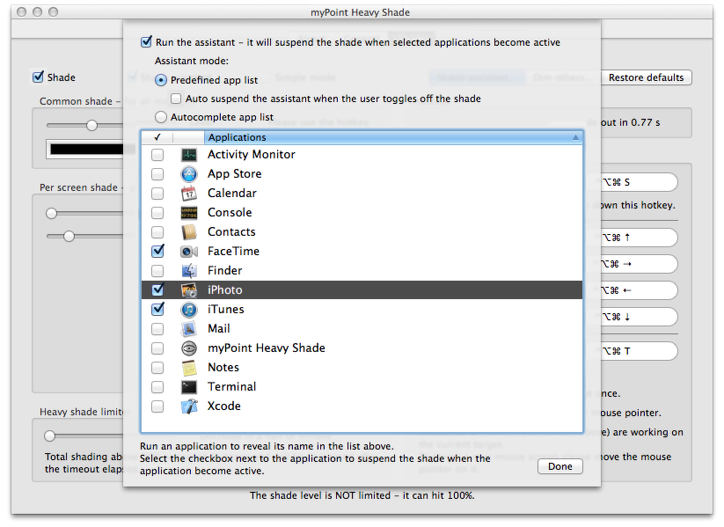
3. How to stop the assistant
Note: there is a combination of settings that may activate the assistant when the user turns on the shade:

Because of this, to guarantee the assistant will not be activated accidentally, just set one of the following:
And turn off the "Run the assistant" checkbox (or the "Shade assistant" checkboxes in myPoint menu or Shade center).

4. Shade assistant in Predefined mode
This is the default assistant mode.
To set this mode: enable the assistant and select the "Predefined app list" radio button.

The Predefined List will show only running and already selected apps.
If you do not see your app, please run it, and its name will appear here instantly.
Select the checkbox next to an app to suspend the shade when this app becomes active.
When you have finished the selection, press the "Done" button to exit the assistant.
When to use it:
When you want to unshade only a few apps and prefer to shade all others. And this app list doesn't change for a long period. 5. Auto suspend the assistant
This option sounds a bit strange, but it enhances the Predefined mode in a very convenient way.
The idea is to suspend simultaneously the shade and the assistant when you need your display at its original view.
For example, you are working in your image processing app, but you frequently access other tools like color pickers, rulers, viewers. 
6. Shade assistant in Autocomplete mode
This mode is something between the manual shading and assistant in predefined mode.
I.e., you prefer the assistant's automation, but you still need to "advise" the assistant. 
When to use it:
When the shade state depends on both the active application and the context of the work. For example, when you process a picture:
When not to use:
When the ambient light is decreasing, and the assistant has a long list of selected apps. In this case, you will try to turn on the shade while the assistant will turn it off when you activate a selected app. To avoid such annoying behavior, you should suspend the assistant or clear its app list manually.
Note: you can still change the selections in the assistant's app list manually.
|


| ||||


© 2012-2024 CODERACE
Apple, the Apple logo, App Store, Mac, Mac OS X and macOS are trademarks of Apple Inc.